
How to Create Stunning Designs with Canva, No Experience
In today’s digital age, it’s now possible to create beautiful and professional designs even without any graphic design experience. Whether you’re a small business owner, a content creator, or just want to create stunning designs for personal use, Canva is a great tool for you.
In this blog, we’ll show you how you can create stunning designs with Canva, even if you don’t have any design experience.
Why is Canva special?
Canva is a simple and user-friendly online design tool that helps you create social media posts, presentations, business cards, flyers, and more. You don’t need any experience to create professional designs. Its drag-and-drop technology lets you create designs in minutes. Canva also offers a wide range of templates and resources, making your design experience even easier.
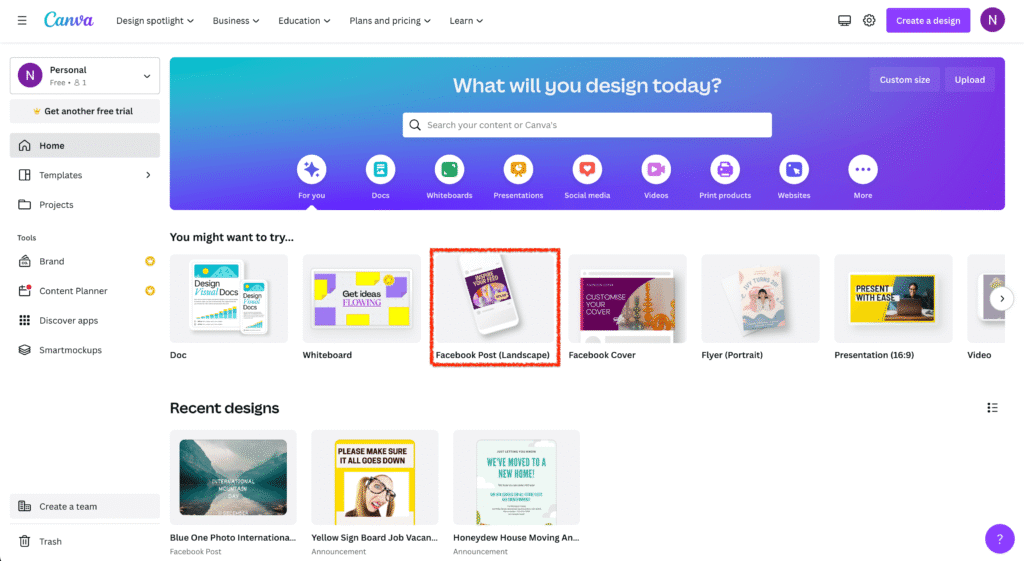
How to get started with Canva
- Sign Up and Log In
First, visit Canva’s websiteGo to and create an account. You can create an account using Google, Facebook, or email. Once you’ve created an account, you’ll be taken directly to the Canva dashboard, where you can start designing. - Choose a template
Canva has a wide selection of templates you can use to get started on your design journey. Whether you’re creating a social media post or a professional presentation, Canva has templates for every type of design. Simply click on a template and start customizing it to suit your needs. Tip : Use the search bar and look for templates like “Instagram Post” or “Resume.” - Customize Your Design
Now it’s time to personalize your design. You can change the text, colors, fonts, and images in your design. You can easily change any element by clicking on it.- Text : Change fonts, size, and color.
- Images : Upload your own pictures or use Canva’s free stock images.
- Icons and Shapes : Add attractive icons and shapes to the design.
- Use Canva’s design tools
Canva offers some great design tools you can use to make your designs even more attractive:- Alignment Guides : Canva gives you guides to keep everything aligned correctly.
- Layering : You can layer any element in front or behind, adding depth to the design.
- Filters : Make your photos more attractive by applying filters to them.
- Download or share
Once your design is ready, you can download it in PNG, JPG, or PDF format. You can also share it directly on social media.
Canva Pro: Take Advantage of Extra Features
The Pro version of Canva gives you even more great features, like:
- Brand Kit : Keep your brand’s color scheme, fonts, and other essential materials in one place.
- Premium Templates : Using these templates, you can create even more professional designs.
- Advanced features : like background remover , which makes your images look even cleaner and professional.
Remember these tips when designing on Canva
- Keep it simple : Avoid cramming too many elements together. Create a clean and simple design.
- Keep a consistent style : Use the same fonts and colors across all designs to make your brand look consistent.
- Use white space : Leaving space in your design is important. This will make your content look better.
conclusion
Designing is no longer just for professionals, but for anyone. Canva is a great and easy tool that lets you create stunning designs without any experience. Whether you’re creating social media posts, business flyers, or putting together a presentation, Canva will help you every step of the way.
This blog is based on personal experience with Canva. The content is for informational purposes only, and results may vary. Canva’s features are owned by Canva, Inc., and this blog is not sponsored or endorsed by them.
#CanvaTips #DesignMadeEasy #GraphicDesignForAll #CanvaTutorial #EasyDesigns #Carrerbook #Anslation #CreateWithCanva #DesignForBeginners #CanvaMagic #CreativeDesigns #LearnDesign




Leave a Reply